
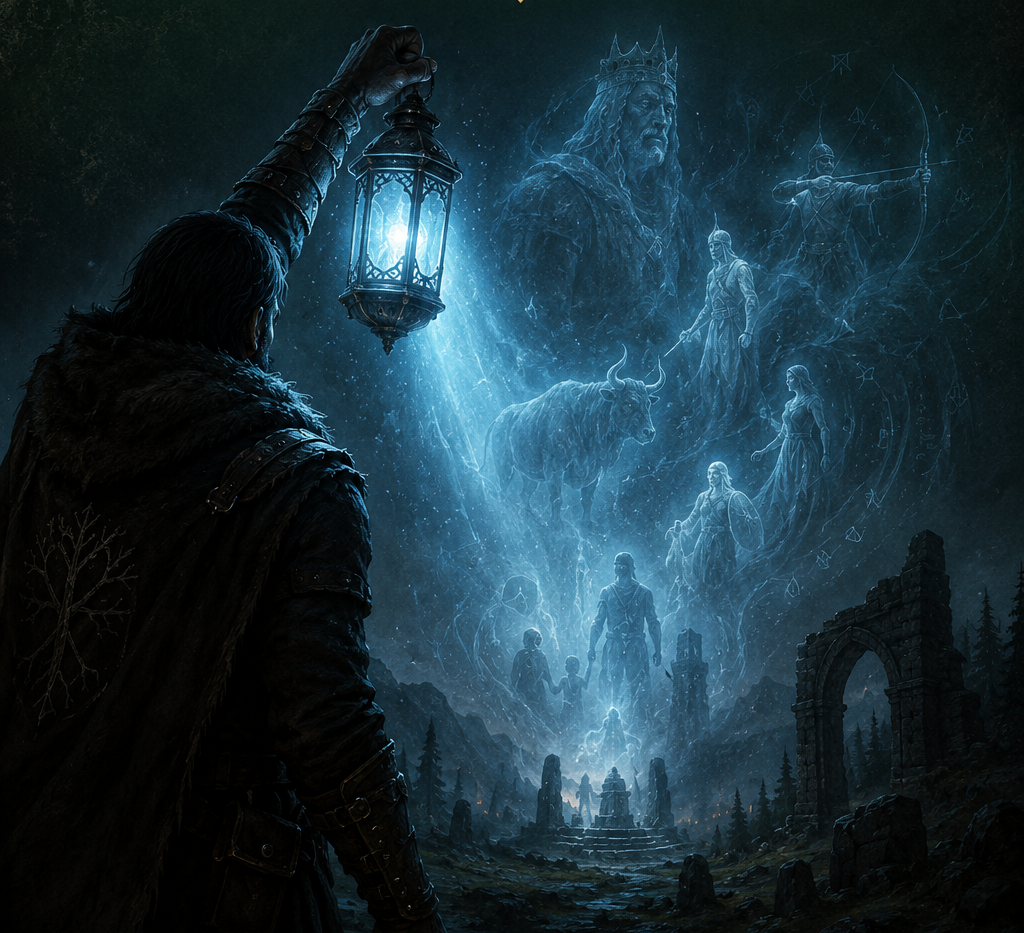
How to Use Your Lantern and Read Memory Fragments in Crimson Desert
Crimson Desert’s lantern mechanic is deceptively simple once you understand it — but that “once” is doing a lot of heavy lifting. The game never really sits you down and explains that you’re working with a two-step system, and plenty of players get stuck at the exact moment they think they’ve figured it out. You’ve got the lantern glowing, you’re holding it up, nothing is happening, and the quest just sits there looking smug.
If you’re searching “Crimson Desert lantern not working” or wondering why you can’t get your character to read a memory after finding the glowing blue spot, you’re in exactly the right place. This guide covers the whole process from equipping the lantern correctly through to playing a memory with the Visione helmet — including the most common failure points that are almost certainly responsible for your frustration.
Step One: Equipping and Activating the Lantern
The lantern trips people up right at the start, because selecting it from your quick slot menu is not the same as turning it on.
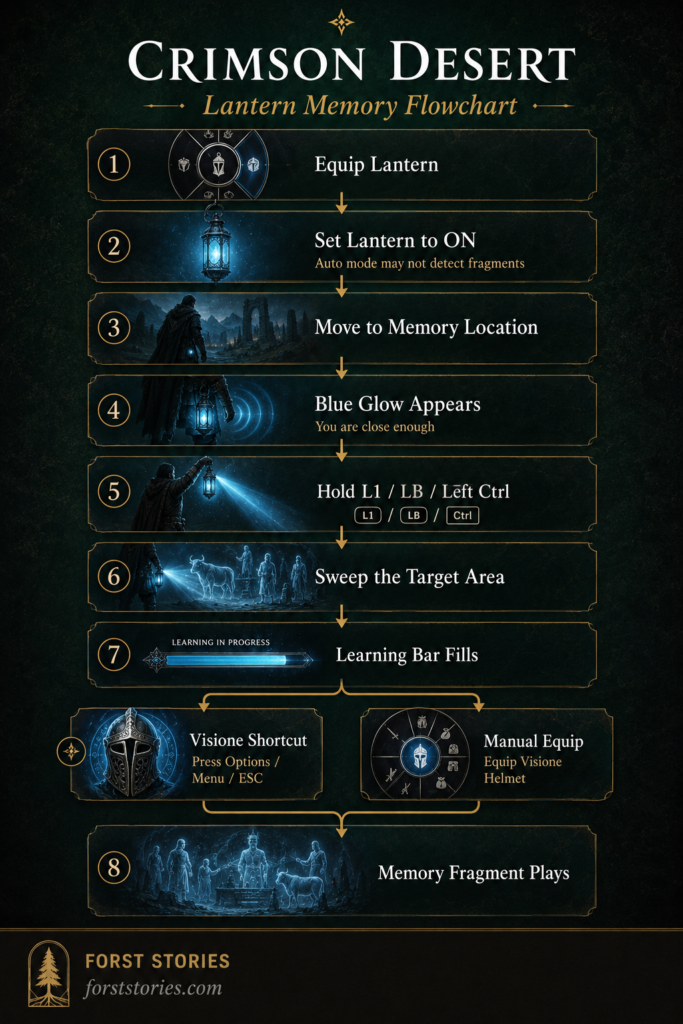
How to Open the Radial Menu
On PlayStation, hold left on the D-pad to open the radial menu, then use the stick to move the cursor to the lantern. On Xbox, it’s the same process with left on the D-pad. On PC, press F2 to open the quick slot ring and select the lantern from there. That part most players manage fine.
The issue is what happens next. The lantern has three states: On, Off, and Auto. If your lantern is selected but set to Off — which is the default — it will appear in your hand or at your hip but won’t function for memory detection at all. You need to choose the outer option to explicitly set it to On. This single step accounts for a large chunk of “my lantern doesn’t work” reports. Auto mode handles basic lighting as you explore, but it does not reliably trigger memory detection, so On is the setting you want when you’re tracking down fragments.
Once the lantern is set to On, it hangs at Kliff’s hip and casts light as you walk. You’ll notice the ambient glow as you move. But this passive state still isn’t enough to read a memory — that requires a separate action entirely.
Step Two: Raising the Beam to Locate Fragments
The “real” interaction with memory fragments happens when you actively raise and direct the lantern’s beam, which is a completely separate input from simply having it equipped.
The Input You’re Looking For
On PlayStation, hold L1 to raise the lantern. On Xbox, hold LB. On PC, hold Left Ctrl. Holding the input makes Kliff lift the lantern and project a focused beam of light in front of him. This is the action that triggers memory detection — not just having the lantern glow at your side.
If you’re in an area with a nearby memory fragment, the lantern will start glowing blue when you’re close enough. This blue aura pulsing from the hip lantern is your signal that there’s something to find. Once you see it, raise the beam with L1/LB/Left Ctrl and start sweeping the light slowly across the area in front of you.
What You’re Looking For
When the beam passes over the right spot, you’ll see faint, bluish-white shapes — ghostly silhouettes or flickering outlines tied to the memory. Keep the beam fixed on those shapes. Don’t sweep past them and keep moving. Holding the lantern steady on the target triggers the learning bar (sometimes shown as “Learning in Progress”) that appears at the edge of your HUD.
The learning bar only fills while you’re actively illuminating the correct target. If you move the beam away before it completes, progress may reset. Some memories require you to illuminate multiple elements in sequence — for example, a quest involving a missing cow might require you to light up the cow first, then a nearby bronze urn, filling the learning bar for each in turn before the scene is considered fully read.
Step Three: Switching to the Visione Helmet
Here’s the step most guides either skim past or bury: learning a memory fragment and playing that memory are two different things, and they require two different pieces of equipment.
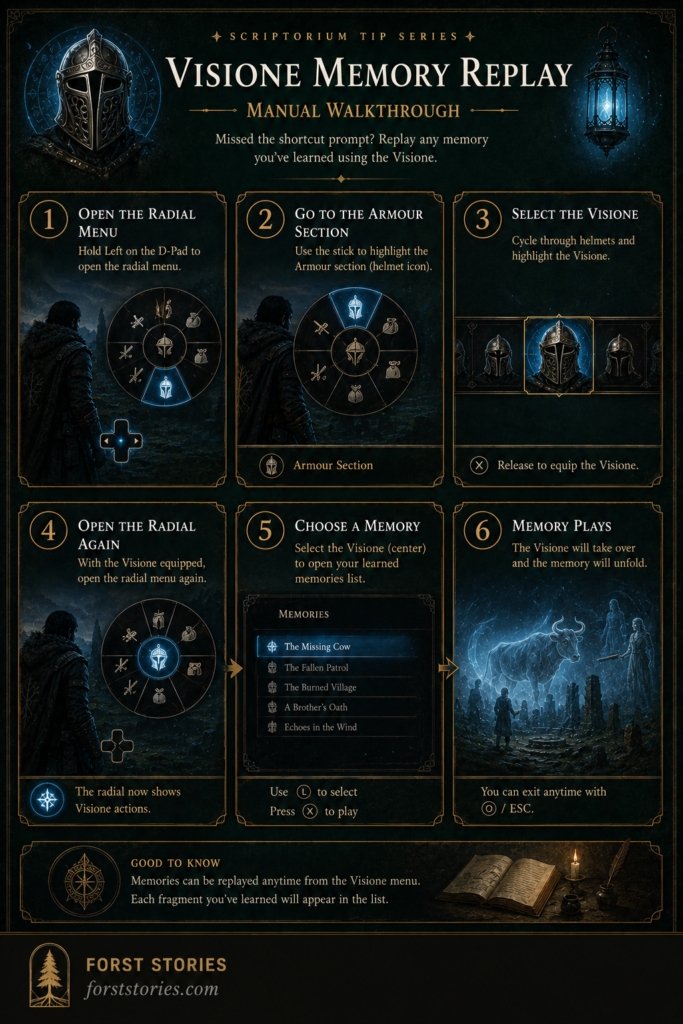
After the Learning Bar Fills
Once the learning bar completes, the game registers that Kliff has absorbed the memory — but you won’t automatically watch it. At this point you’ll usually see a context-sensitive prompt appear in the corner of your screen, often represented by a stone or mirror icon. Pressing the Options button on PlayStation (the Menu button on Xbox, or ESC on PC) at this moment is a shortcut that immediately has Kliff don the Visione helmet and begin playing the memory sequence.
This shortcut is the fastest way to get into the memory, and it’s worth taking when the prompt appears. Many players miss it because they’re still looking at the area they just scanned rather than the HUD corner.
Playing a Memory Manually
If you missed the prompt or want to replay a fragment you’ve already learned, you can access the Visione from your inventory or the armour section of the radial menu. On console, hold left on the D-pad, navigate to the armour section, and cycle through helmets until the Visione is highlighted. Releasing to equip it, then opening the radial again with the Visione selected, brings up a list of available memories to play. On PC, go into your inventory, select the Visione helmet, choose Use or Play, and pick the specific fragment you want — for instance, “The Missing Cow” — from the list.
Common Failure States and How to Fix Them
If you’ve read through the steps above and something is still going wrong, one of these is almost certainly the culprit.
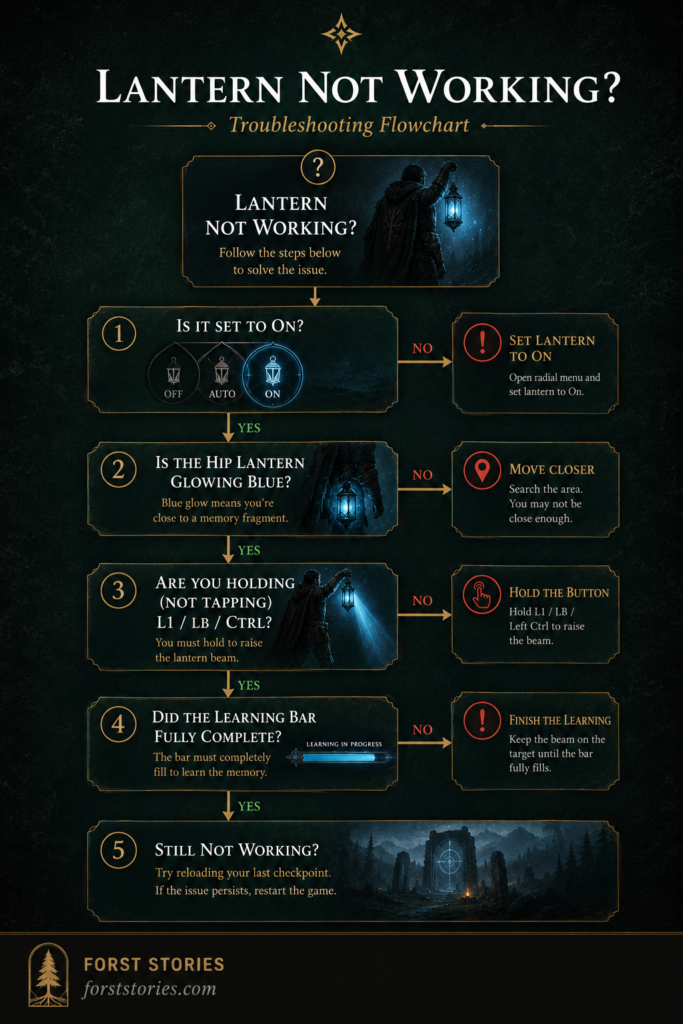
The Lantern Is Set to Off or Auto
This is the most common single cause of the mechanic seeming broken. Even with the lantern in hand, if the radial menu shows it as Off or Auto, it won’t respond to memory fragments properly. Go back into the radial, select the lantern, and confirm the On state. It’s easy to skim past this toggle without realising it exists.
You’re Not Standing in the Right Spot
Memory fragments don’t cover a wide radius. If the lantern isn’t glowing blue at your hip, you haven’t found the right location yet. Move slowly through the quest area — a camp, a specific tent, near a marked object — until the blue pulse appears. Raising the beam before the lantern glows blue will just show you an empty area and nothing will happen.
You’re Tapping Instead of Holding
The input for raising the lantern is a hold, not a tap. Tapping L1/LB/Left Ctrl uses a different in-game function. If you’re doing quick presses and seeing no response, switch to holding the button for a second and see if the raised-beam animation triggers.
The Learning Bar Only Partially Filled
For multi-step memories, it’s easy to partially complete the scan on one element and assume the whole thing is done. If the Visione list doesn’t show the fragment you expect, check whether the quest requires you to illuminate additional targets in the same scene. Return to the location, raise the beam, and look for any remaining ghostly shapes you haven’t held the lantern on long enough to fully learn.
Quest Bug: Reload and Try Again
There are documented cases — particularly with certain story quests — where memories fail to play even after completing all the right steps correctly. If you’re confident you’ve done everything and the sequence still won’t trigger, the community’s consistent fix is to reload the last checkpoint and repeat the process. Ensure the Visione is properly equipped (not just in inventory) and try again from the lantern-raise step.
Platform Input Reference
Here’s a quick summary of the controls across platforms, since the game doesn’t always surface them clearly:
| Action | PlayStation | Xbox | PC |
|---|---|---|---|
| Open radial / quick slot menu | Hold D-pad ← | Hold D-pad ← | F2 |
| Set lantern to On | Radial → Lantern → Outer option | Radial → Lantern → Outer option | Quick slot → Lantern → On |
| Raise lantern beam | Hold L1 | Hold LB | Hold Left Ctrl |
| Trigger Visione shortcut (after learning) | Options | Menu | Esc |
| Equip Visione manually (armour radial) | Radial → Armour → cycle to Visione → Release | Radial → Armour → cycle to Visione → Release | Inventory → Visione → Use / Play |
| Select and play a memory fragment | Visione radial → pick fragment → ✕ | Visione radial → pick fragment → A | Inventory → Visione → Use → pick fragment → Enter |
Pro tip: The lantern must be set to On (not Auto or Off) in the radial menu before any of these inputs will detect memory fragments. If the hip lantern isn’t glowing blue when you enter an area with a fragment nearby, check this setting first.
One More Thing Worth Knowing
The lantern’s blue glow happens at your hip, passively, before you ever raise the beam — and that glow is your earliest warning that you’re in the right area. A lot of players raise the beam too early, in the wrong location, and then assume the mechanic is broken because nothing appears. Train yourself to look for the passive blue pulse first, then raise. The sequence is: see the glow → hold to raise the beam → sweep slowly → hold on the target → wait for the bar to fill → trigger the Visione.
Once you’ve done it once or twice it becomes second nature, and you’ll start noticing how much of Crimson Desert’s world is layered with these hidden fragments. The lantern isn’t just a quest tool — it’s the game’s way of letting you read the history of every location you pass through. That’s worth taking the time to understand properly.
If you’re still getting to grips with the game’s broader mechanics, our Crimson Desert Beginner’s Guide covers everything from combat to inventory management to help you find your footing in the early hours.
Continue Your Journey
- Crimson Desert Beginner’s Guide — your starting point for everything from controls to combat systems
- Most Anticipated RPGs — where Crimson Desert fits in the broader CRPG landscape
- What Is a TTRPG? — if the lantern mechanic has you thinking about tabletop exploration systems, this is where to start
Have you managed to read all the memory fragments in an area, or are there specific quest steps still giving you trouble? Drop a comment below — especially if you’ve found a fix for a particular fragment that wasn’t responding, since it might help someone else stuck on the same spot.
Want guides like this delivered straight to your inbox? Sign up for The Scriptorium Newsletter and we’ll keep you up to date as we cover more of Crimson Desert and the rest of the RPG world.
RPG news, GM tips, and system deep dives — straight to your inbox, no filler.


